Sharing
Give people access to the folders they need, with permissions that fit their role. Team plans add sharing with users and groups in your organization, while document and file contents stay end-to-end encrypted.
Early access.While we test, hosted data can be reset, so keep a backup of anything important.
Organize together around a folder
Keep related notes, contacts, files, and records together, then share the folder with the people who need them.
- People
- Share with people in your organization's roster. Each roster member counts toward your plan's member capacity.
- Groups
- Grant access to a group when several people need the same permissions. Manage the group's membership in Org Manager.
- Nested folders
- Access can be inherited from a parent folder. The Sharing tab in Container Info shows direct grants and inherited grants, including the folder they come from.
Choose the permission
Use read access for reference material, write access for collaboration, and admin access for people who manage the folder.
- Read
- Read the shared content without permission to edit it.
- Write
- Read and edit the shared content.
- Admin
- Read and edit the content, and manage the folder's access.
Share a folder with a group
Sharing needs an online connection and a Team plan for the organization. Start with a folder whose access you can manage.
Add your collaborators
Add the people you want to share with to your organization's roster in Org Manager. Put people in a group if you want to manage their folder access together.
Open the folder's sharing controls
In Explorer, open the folder's Container Info view and select Sharing. Review its existing grants and where they come from.
Choose who gets access
Use Share To Group to select a group and choose read, write, or admin permission. Confirm with Share to grant access.
Review the grant
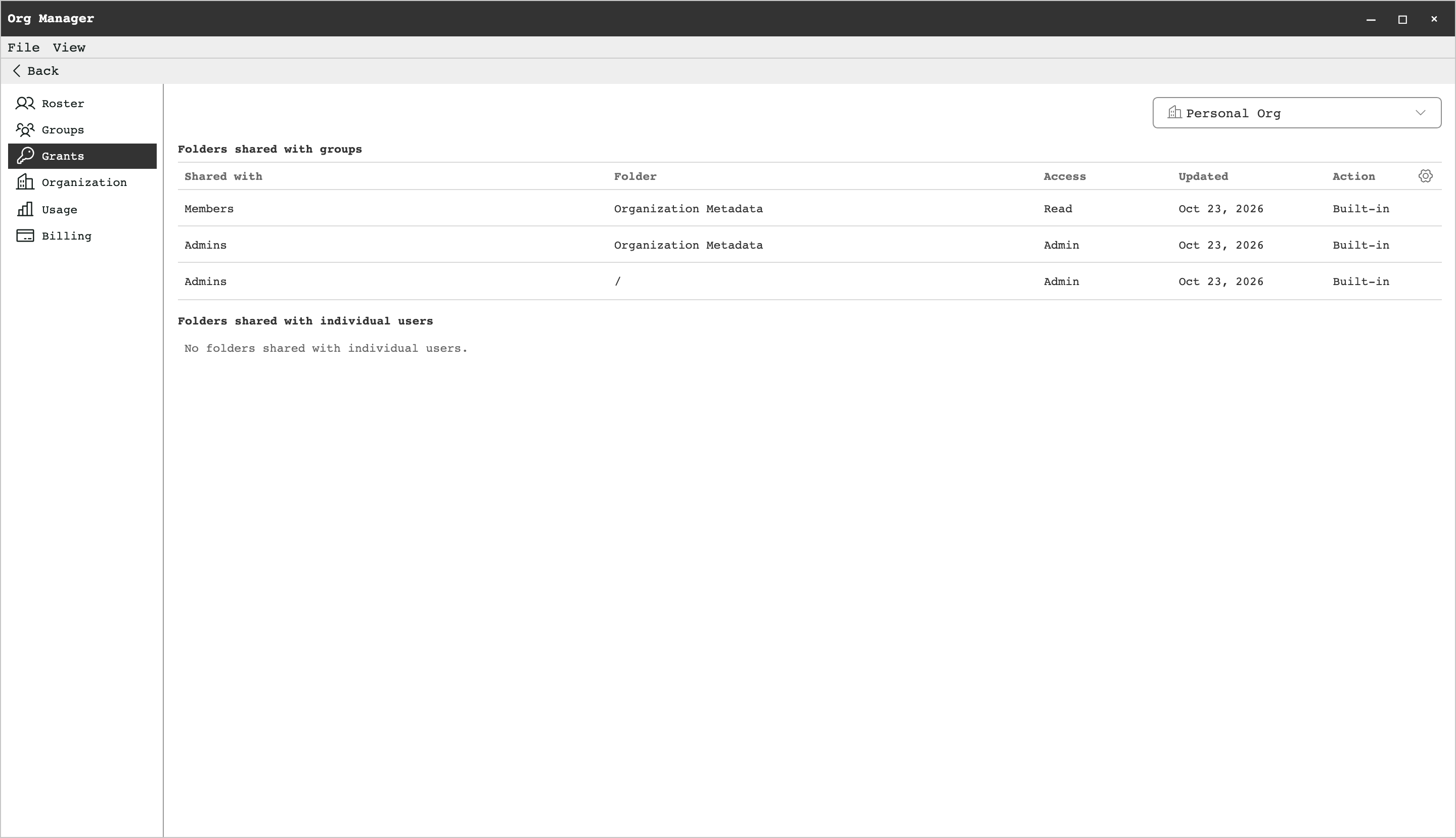
Check the resulting permission in the folder's Sharing tab. Org Manager's Grants view gives you another place to review the organization's access grants.
How encrypted sharing works
A folder brings together content and access rules. The app checks signed access records before making its encryption keys available to recipients.
Verify the recipients
Your device checks signed access rules and group policies to establish who can receive the folder's keys. A recipient list supplied by the service is not enough on its own.
Deliver encrypted content and keys
Document and file contents are encrypted on your device. Content keys are protected by folder keys, which are themselves encrypted for the verified recipients. The service stores and delivers the encrypted material.
Verify and open on the receiving device
The receiving app verifies the signed records and access path, unlocks the keys, and decrypts the content locally. Shared edits sync between devices; a note's authorship viewhelps you see each contributor's work.
Understand the scope of a share
Access includes the history a folder retains. Keep that in mind when adding people or changing who can read it.
- New members can read retained history
- A new member can read the history retained by the folder, including content from before they joined.
- Revocation cannot recall copies
- Removing access cannot erase content someone has downloaded or keys they already received. Removing group members rotates the group key and affected folder keys, but rotating a parent folder does not automatically replace every nested folder's keys.
Sharing is included with Team plans.